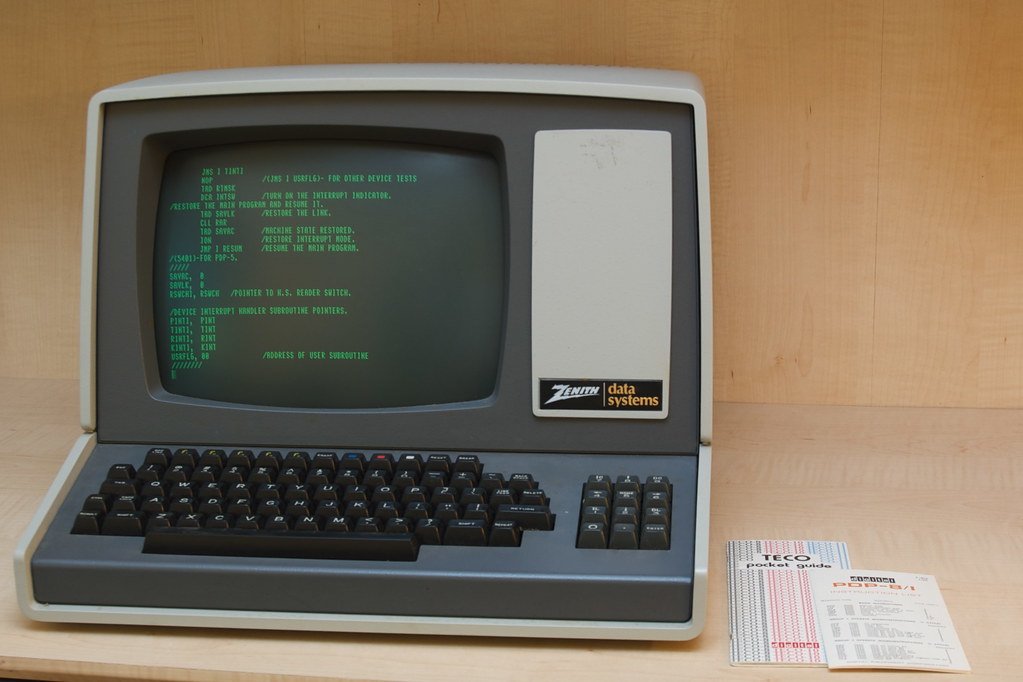
Anthropic’s terminal-based agent brings the advanced reasoning of modern LLMs directly to your command line, letting you edit files, run tests, and manage git commits through natural language. If you want to streamline your terminal workflow, this Claude Code CLI setup guide walks you through the complete installation process, system configuration, and practical developer workflows to get you up and running in minutes.
Understanding Claude Code and System Requirements
Unlike traditional chat interfaces that live in your browser, Claude Code is a native command-line tool designed to operate directly within your local development environment. It functions as an autonomous terminal agent capable of reading your codebase directory structure, searching for patterns, executing shell commands, and modifying files with precise edits.
Before diving into the installation, ensure your development machine meets the necessary prerequisites. You will need a modern Unix-like operating system (macOS 10.15+, Linux, or Windows via WSL2), Node.js version 18 or higher, and an active Anthropic Console account with API access credits.
Step-by-Step Claude Code CLI Installation
Getting the tool onto your machine is straightforward thanks to Node Package Manager (npm). Follow these terminal commands to complete your initial installation:
- Open your preferred terminal emulator (Terminal, iTerm2, Alacritty, or Windows Terminal).
- Run the global npm installation command to download the CLI package:
npm install -g @anthropic-ai/claude-codeOnce the installation finishes, verify that the binary is correctly linked in your system PATH by checking the version number:
claude --versionConfiguration and Authentication
With the package successfully installed, the next step in our Claude Code CLI setup guide is authenticating your terminal session with Anthropic’s servers and tailoring the configuration to your project structure.
Authentication via API Key
To link your CLI to your Anthropic account, launch the tool inside any directory by typing:
claudeThe interface will prompt you to authenticate. You can either log in via your browser using your Anthropic account credentials or paste an API key directly. The tool securely caches your authentication token locally in your user configuration directory, ensuring you don’t need to re-authenticate every time you open a new terminal window.
Configuring Project Settings
Claude Code automatically looks for a configuration file or a .claudignore file in your project root. Similar to .gitignore, you should use .claudignore to prevent the agent from reading sensitive environment files (like .env), build outputs, or massive vendor directories that waste context window tokens.
Practical Developer Workflows
Once configured, Claude Code transforms how you handle everyday engineering tasks. Here are three core workflows where the terminal agent excels:
1. Autonomous Bug Fixing and Stack Trace Analysis
When an integration test fails or your application throws a cryptic stack trace, copy the error output straight into the prompt interface. Claude will scan your local files, identify the root cause across multiple modules, draft the required code modifications, and ask for your approval before writing changes to disk.
2. Generating Comprehensive Unit Tests
Instead of writing test boilerplate manually, navigate to a specific component or module and ask the agent to build out your test suite:
“Analyze
userService.tsand write a complete set of Jest unit tests covering edge cases like network timeouts, invalid inputs, and null user objects.”
Claude will inspect the implementation logic, generate the test file in the correct directory, and can even execute the test runner via the shell to verify everything passes.
3. Interactive Git Management and Commit Generation
After finishing a multi-file feature implementation, use Claude Code to review your uncommitted changes. It can stage files intelligently, run code linters, and draft descriptive, conventional commit messages that align with your repository’s history.
Best Practices and Cost Management
Because terminal agents consume context tokens quickly when reading large directories, keep these optimization tips in mind:
- Target your directories: Launch
claudeinside specific sub-projects rather than your monolithic root directory whenever possible. - Maintain a strict
.claudignore: Exclude heavy assets, logs, and compiled binaries to preserve your API rate limits and token budget. - Use explicit prompts: Clearly define constraints regarding frameworks, libraries, and coding styles to reduce iterative prompt revisions.
Conclusion
Integrating Anthropic’s terminal agent into your daily routine dramatically accelerates coding velocity by bridging the gap between natural language reasoning and local file execution. By following this setup guide, you now have a fully authenticated environment ready to tackle debugging, testing, and refactoring tasks right from your command line.
Frequently Asked Questions
Is Claude Code CLI free to use?
The CLI tool itself is open-source and free to install, but it relies on your Anthropic API key to function. API usage is billed based on token consumption according to Anthropic’s standard developer pricing model.
How does Claude Code compare to GitHub Copilot CLI?
While Copilot CLI is deeply integrated into GitHub workflows and optimized for quick shell command generation, Claude Code functions as a heavy-duty agentic coding assistant capable of multi-step file manipulation, deep codebase exploration, and autonomous test execution.
Can I restrict what files Claude Code can read or edit?
Yes. You can use a .claudignore file in your repository root to hide specific files and directories from the agent, preventing it from accessing sensitive configuration files or massive dependency folders.
What should I do if the CLI throws authentication errors?
If you encounter authentication failures, try running claude logout followed by claude to re-trigger the browser-based OAuth login flow or re-enter your API key manually.